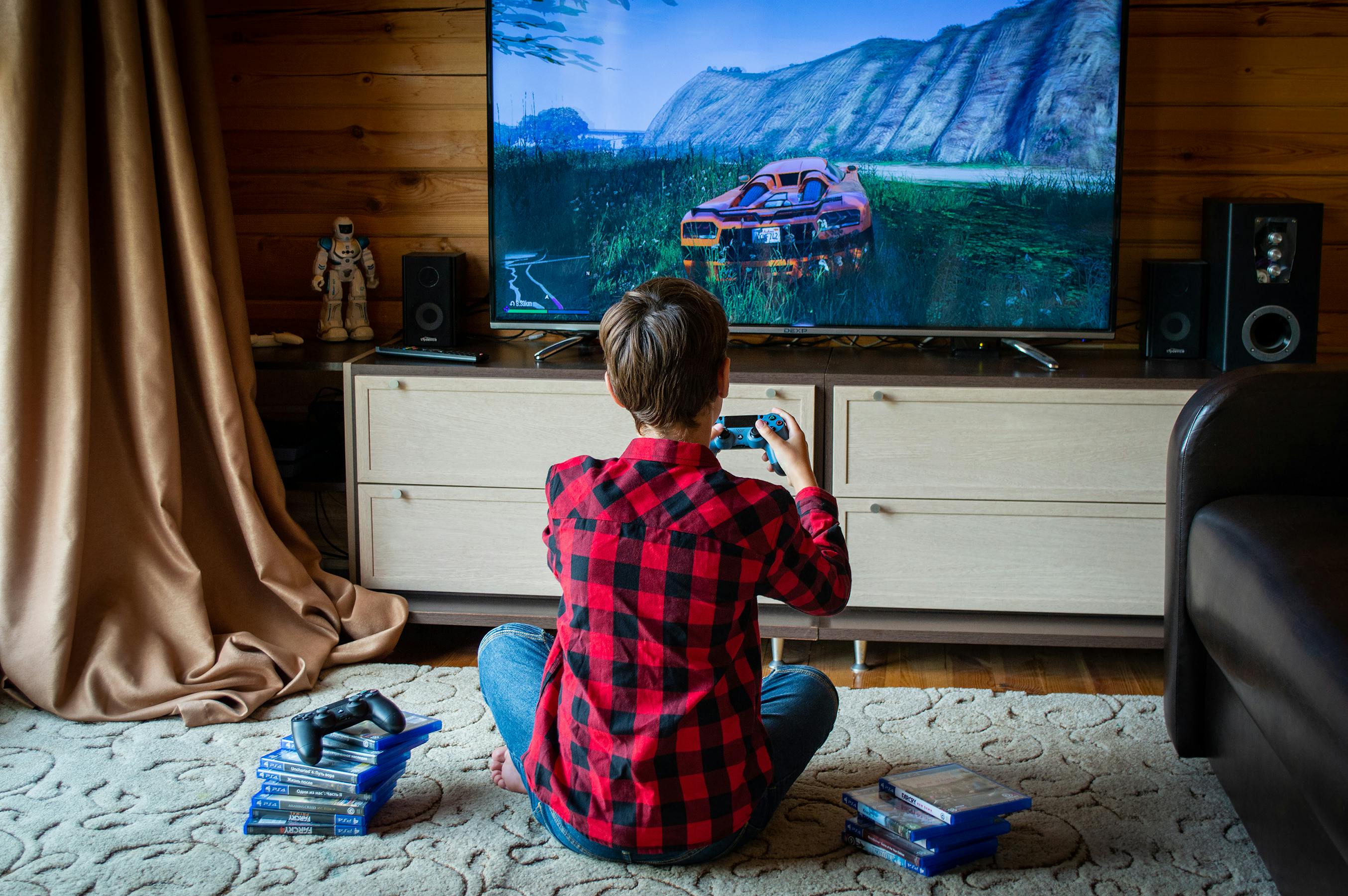
Parental Controls for Gaming on Smart TV and Android
Video games on Smart TV and Android can expose kids to violence, in-app purchases, and online strangers. Here's how to manage gaming safely.
The Gaming Parental Control Challenge
Gaming parental controls involve multiple layers: game content ratings, in-app purchase controls, online multiplayer safety, and total play time management. No single control handles all of these — but Cylux manages the time and monitoring layer across Smart TV and Android.
Game Content Ratings (ESRB)
The Entertainment Software Rating Board (ESRB) rates games similarly to movies:
- E (Everyone): Minimal cartoon violence, no mature content
- E10+: Mild violence, mild language — ages 10+
- T (Teen): Violence, mild language, crude humor — ages 13+
- M (Mature): Intense violence, sexual content — ages 17+
Amazon's App Store and Google Play both support filtering by ESRB rating. Enable the rating filter in your account settings so your child can only download age-appropriate games.
Blocking Specific Games on Smart TV
If a specific game is installed on the Smart TV and you don't want your child accessing it:
- Open Cylux parent app → Smart TV → App Controls.
- Find the game and toggle it to Blocked.
The game remains on the device but shows a lock screen when opened.
Gaming Time Limits
Gaming is highly engaging — children lose track of time more easily during games than during passive TV watching. Set strict per-day gaming limits in Cylux:
- Set a daily limit for gaming specifically using per-app time controls
- Block gaming entirely during homework hours and after bedtime
- Allow gaming as a reward — enable after homework schedule is complete
In-App Purchase Controls
In-app purchases are a major risk in mobile gaming. On Smart TV:
- Go to Settings → My Account → Amazon Content and Devices on the Amazon website.
- Enable Purchase Approval — require a PIN for all purchases.
On Android:
- Open Google Play → Profile → Settings → Authentication → Require authentication for purchases.
- Set to "For all purchases through Google Play."
Online Multiplayer Safety
Online multiplayer games expose children to strangers — including predatory adults who use gaming as a grooming avenue. Best practices:
- Use family-friendly game platforms (Roblox has stronger child protections than most)
- For Roblox specifically, enable Account Restrictions in Roblox settings
- Discuss online strangers with your child: anyone they meet online who they haven't met in person is a stranger
- Keep gaming devices in common areas so conversations are overheard naturally
Monitor Gaming Time with Cylux
Cylux reports time spent in each game app — see if your child is spending disproportionate time in one game and address it before it becomes a habit. Start monitoring at cylux.co.
Cylux Features
See Everything Cylux Can Do for Your Family
See Cylux plans and pricing — from $4.99/month.
Screen time limits · App blocking · Web & content filtering · GPS location tracking · Remote device lock · Bedtime enforcement · Call & SMS monitoring · SOS panic button · Real-time content monitoring · Activity reports — works on Android, iOS, iPad, Windows, Mac, Chromebook, Kindle, Roku, Smart TV, Samsung, LG & every Smart TV. One parent dashboard for every device your child uses.
Explore All Features →Written by
Cylux Team
Published April 26, 2026
Ready to protect your family?
Keep your kids safe online
without breaking their trust.
GPS tracking, app blocking, screen time limits, and real-time alerts — all in one app used by thousands of families.
Get Started