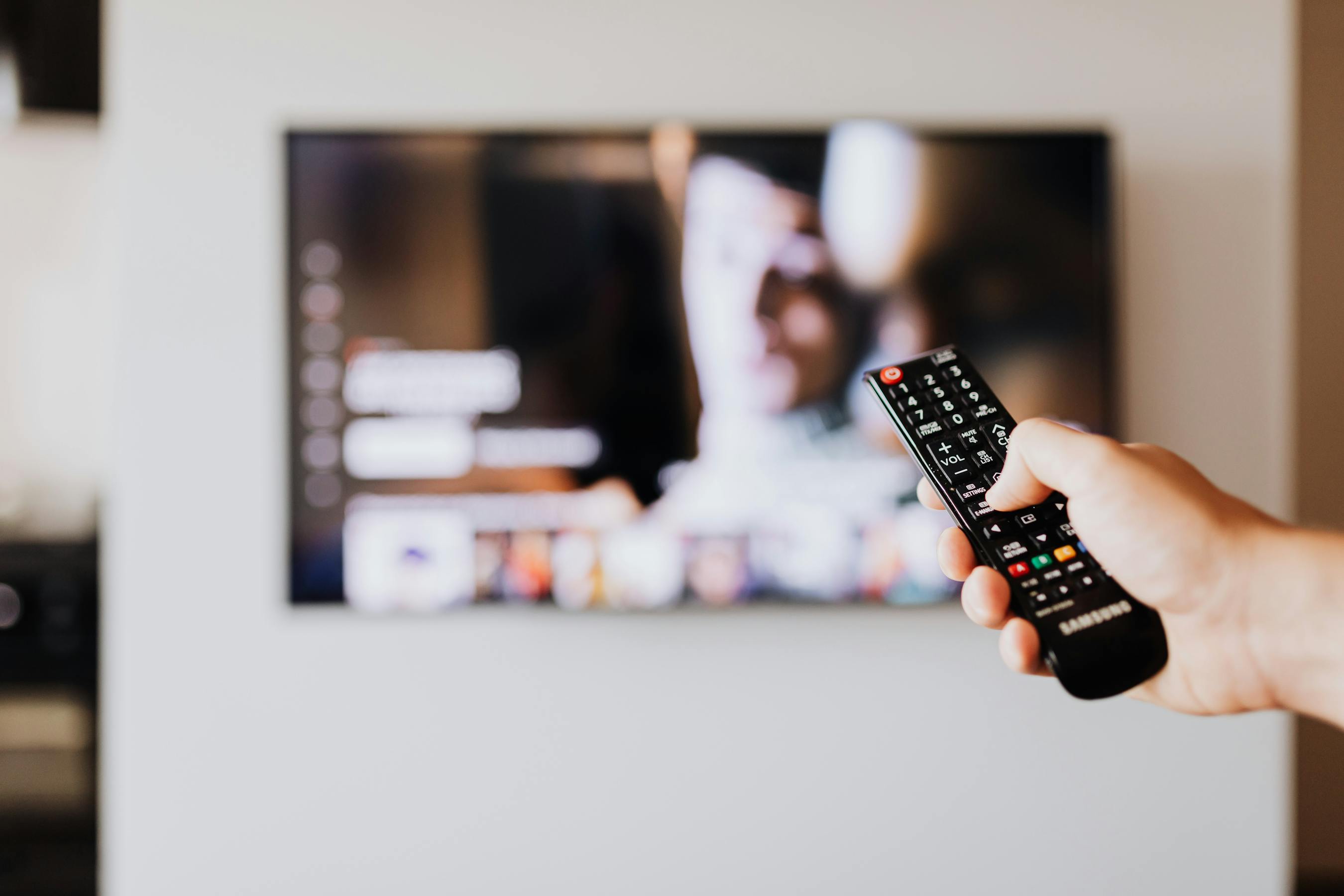
How to Set Up Parental Controls on Smart TV: A Guide for Every Brand
Samsung, LG, Sony, Hisense — every smart TV brand handles parental controls differently. Here's the full guide, plus how Cylux adds the controls no TV includes.
Why Smart TV Parental Controls Are Complicated
Unlike phones where parental controls are standardized, every smart TV brand has its own system — and none of them are particularly strong. PIN-based content locks are common; real-time monitoring and remote locking are essentially nonexistent in built-in TV controls.
Samsung Smart TV Parental Controls
- Press the Home button on the remote → Settings.
- Go to General → System Manager → Parental Settings.
- Set a PIN and choose a Program Rating Lock level.
- Enable App Lock to require a PIN for specific apps.
Limitation: Samsung's controls lock content by rating but don't limit total screen time or allow remote locking.
LG Smart TV (webOS) Parental Controls
- Press the gear icon → Safety.
- Set a Safety password.
- Choose TV Rating to lock content by rating.
- Enable Application Locks for specific apps.
Sony (Google TV / Android TV) Parental Controls
Sony TVs running Google TV or Android TV can install third-party parental control apps from the Google Play Store. This makes them much more capable than Samsung or LG:
- Go to Settings → Device Preferences → Parental Controls for basic content locks.
- Install Cylux for Android TV from the Google Play Store for full screen time management and content monitoring.
Smart TV Edition Smart TVs
Smart TVs running Smart TV OS (from brands like Toshiba, Insignia, and Amazon itself) support Cylux via sideloading — the same as a Fire Stick. This gives you the full Cylux feature set including parental control Smart TV scheduling and remote lock.
Hisense, TCL, and Other Android TV Models
TVs running Android TV can install Cylux directly from the Google Play Store, giving you screen time management, content monitoring, and remote lock — far beyond what any built-in TV control offers.
What All Built-in Smart TV Controls Are Missing
- Daily screen time limits that auto-enforce
- Remote lock from a parent's phone
- Content monitoring (what was watched, not just whether it was age-appropriate)
- Cross-device management (phone + TV in one app)
The Solution: Cylux for Smart TV
Cylux bridges the gap between weak built-in controls and professional-grade parental oversight. Whether your TV runs Fire OS or Android TV, Cylux adds the layer of control every smart TV is missing.
Learn more at cylux.co.
Cylux Features
See Everything Cylux Can Do for Your Family
See Cylux plans and pricing — from $4.99/month.
Screen time limits · App blocking · Web & content filtering · GPS location tracking · Remote device lock · Bedtime enforcement · Call & SMS monitoring · SOS panic button · Real-time content monitoring · Activity reports — works on Android, iOS, iPad, Windows, Mac, Chromebook, Kindle, Roku, Smart TV, Samsung, LG & every Smart TV. One parent dashboard for every device your child uses.
Explore All Features →Written by
Cylux Team
Published April 26, 2026
Ready to protect your family?
Keep your kids safe online
without breaking their trust.
GPS tracking, app blocking, screen time limits, and real-time alerts — all in one app used by thousands of families.
Get Started